Pellix External











Bulk savings
| Quantity | Discount | Per unit |
|---|---|---|
| — | each |
1 person is viewing this product right now.
201 purchases.
About Pellix
🛡️ Ideal for players who want a competitive edge without compromising account safety.
- Pellix is an external cheat for Counter Strike 2 designed to enhance your gameplay with advanced features and stable performance.
- Standards defining software in protection, features and convenience. Strong protection: Read-only driver technology. Huge customization: All you ever need and more. Instant support: Workers with background in the subject. Is it undetected? Pellix has been undetected for VAC for about four years, achieved by utilizing a kernel driver.
Features
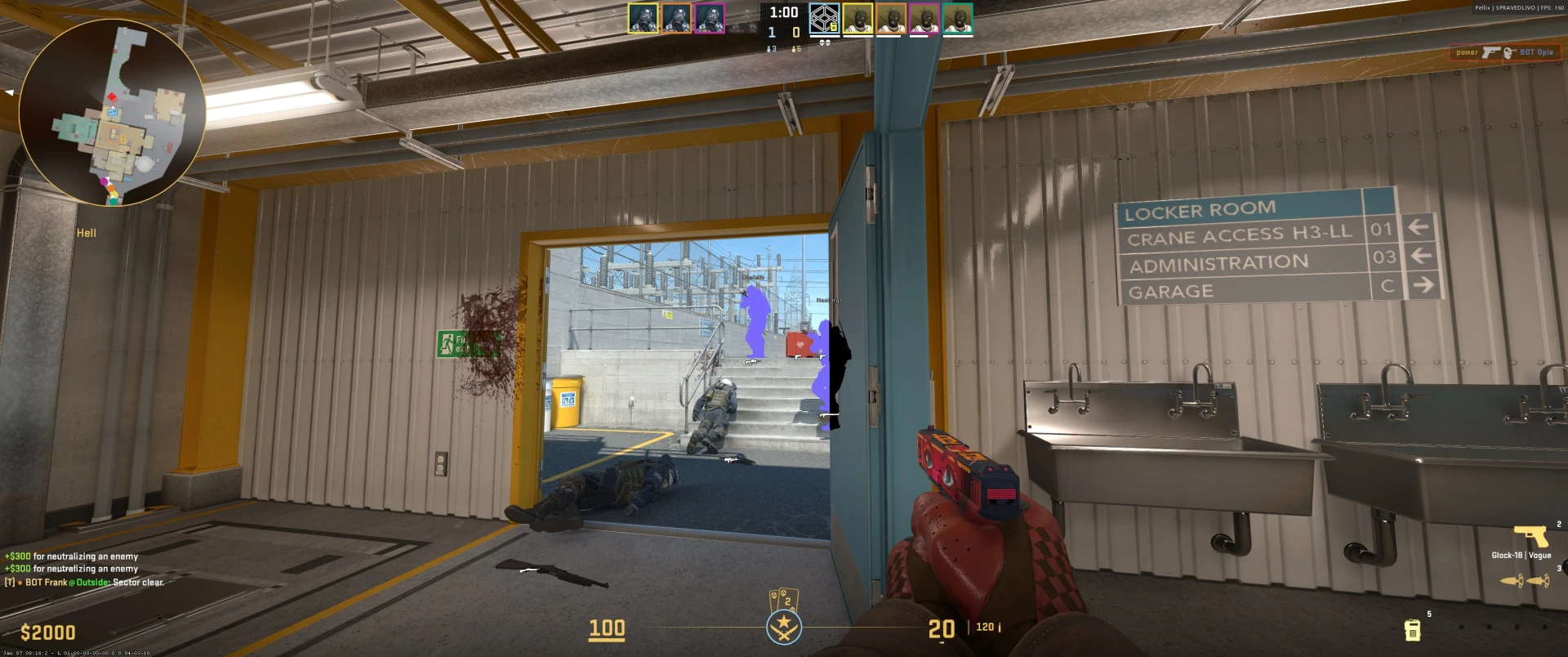
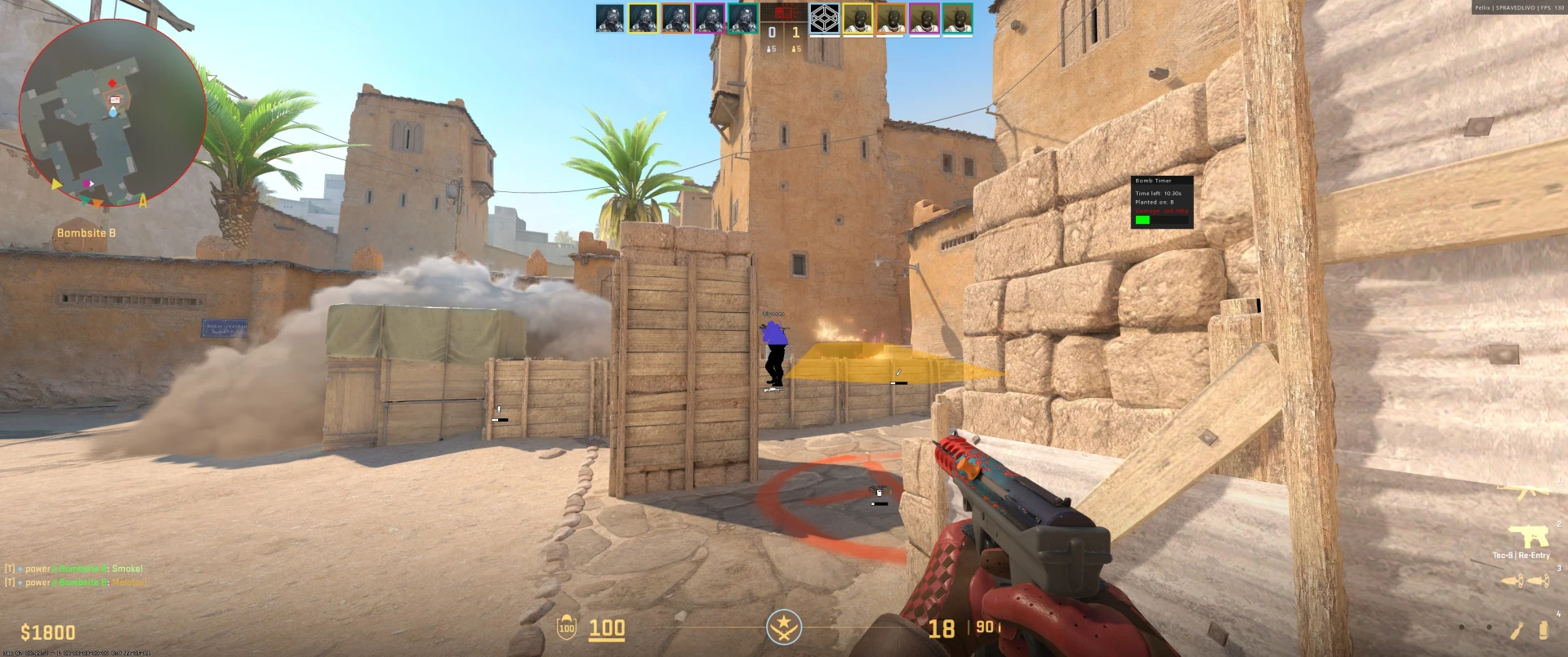
- External, Aimbot, Triggerbot, ESP, Wallhack, Radar, Cloud Radar, Recoil Control, Bunny Hop, Grenade Helper, Spectator List, Config System, Instant Delivery, Secure System, Auto Updates
All Features
Global Tab
- Global sub-tub:
- Bypass Capture: Prevents the cheat overlay from being captured in programs like OBS or Discord. Enable this to hide the cheat from recordings or streams.
- Allow VPK Parsing: Allow to parse files from the game files, this is required for features like model chams. Cheat restart is required to apply this setting.
- Use Fast Memory Read: Uses a faster memory reading method. Might BSOD.
- Debug Console: Enables a debug console.
- Single Thread: Switch cheat to single threaded mode, including local/players/skeleton threads.
Helps in scenarios with low amount of CPU cores or DMA where all reads are single threaded. - Disable entities: Fully disable entities thread.
Doing this will disable all entity related functionality (dropped items, grenades).
Only useful when using DMA, otherwise consider increasing it's frequency. - Frequency (Local/Players/Entities/Trace): Controls how often the cheat reads specific game data (local player, other players, entities like weapons, and trace information). Lower values mean more frequent updates, potentially smoother visuals/aim, but higher CPU usage. Higher values reduce CPU usage but might make visuals/aim less responsive.
- Process Priority: Sets the Windows process priority of the cheat.
- DPI Scale: Scales the size of the menu.
- Menu Accent Color: Changes the color scheme of the menu.
- Menu font: Terminus, Segoe UI or Custom (custom font should be inside
C:\Windows\Fonts) - Unload: Closes/unloads the cheat from the game.
- Reinitialize input: Reinitialize driver input (for example if you reconnected your wireless mouse/keyboard.
- Overlay sub-tub:
- New Overlay Method: New overlay method improves overlay performance.
- Prevent Multithreading: Prevent render driver from using multiple threads for rendering. This will significantly reduce WARP performance but lower CPU usage.
- Overlay preferred device type: Use preferred GPU type. Integrated is better in most cases.
This option is incompatible with WARP (software). - Overlay Sync Type: Determines how the cheat's overlay rendering is synchronized.
Custom: You can set the refresh rate manually.
Vertical Sync: Syncs the overlay's frame rate to your monitor's refresh rate, preventing tearing but potentially limiting FPS.
Game: Syncs the overlay's frame rate with the game's. - Overlay Render Type: Chooses between hardware (GPU) and software (CPU) rendering for the overlay.
Hardware: Uses the GPU, generally faster, but can cause performance conflicts if the game is also GPU-bound.
Software (WARP): Uses the CPU for rendering. Can reduce GPU contention, potentially improving game FPS, but might increase CPU usage and decrease overlay FPS. - Overlay Maximum FPS: Maximum FPS for rendering the overlay if sync type is set to custom.
- GPU Priority: Idle, Below Normal, Normal, Above Normal, High, Realtime. Priority above normal should make GPU scheduler prioritize overlay render instead of the game.
Visuals Tab
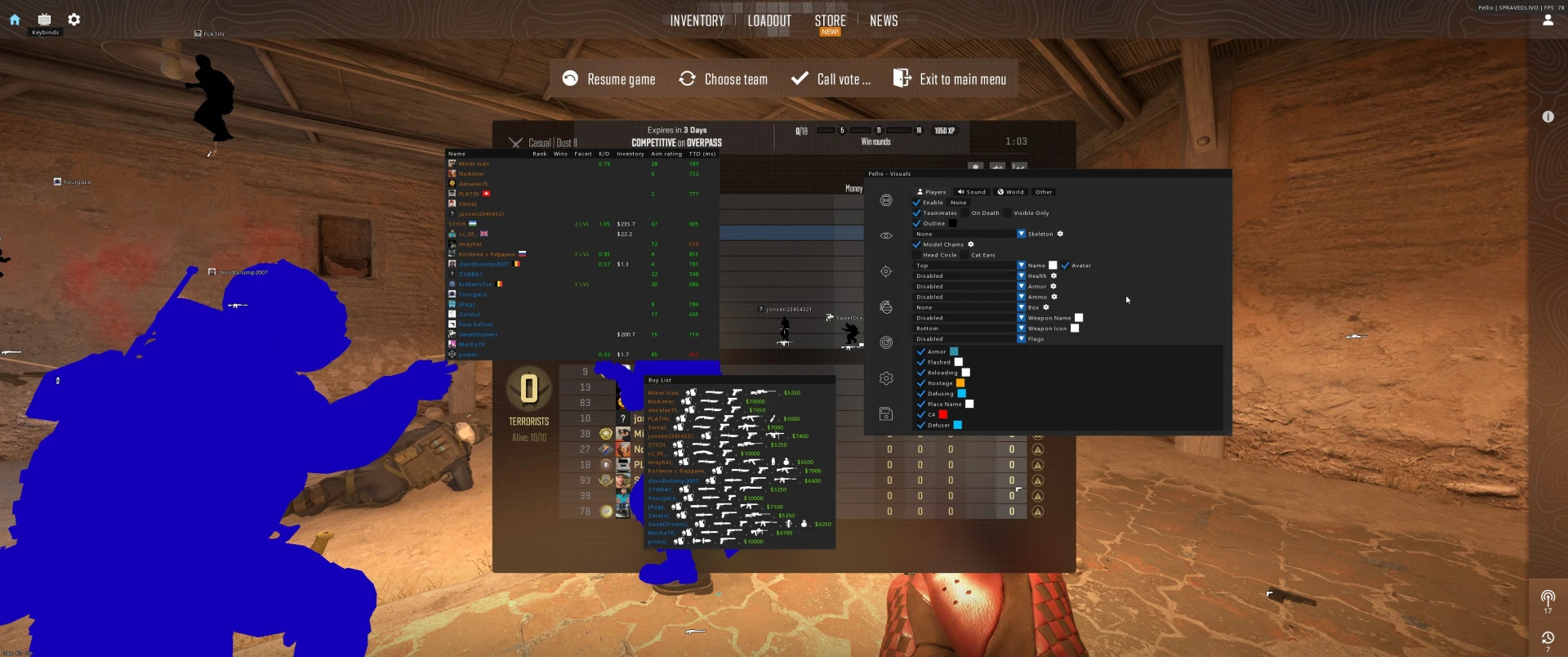
- Players Sub-Tab:
- Enable: Toggles player ESP.
- Teammates: Enables ESP on teammates.
- On Death: Keep the ESP on dead players
- Visible Only: Only show ESP on visible players.
- Outline: Draws an outline around players.
- Skeleton: Draws a skeleton on players.
- Chams: Fills each bone with color making the bone the whole shape (might tank FPS)
- Chams (GPU): Render chams hitbox capsules in the 3D space on the GPU, colliding with bullet mesh/hulls, making almost proper visible/invisible check.
- Model Chams: Render chams based on the player model.
- Options: Visible/invisible color, wireframe, do not render world (disable visibility check).
- Head Circle: Draws a circle around players' heads.
- Cat Ears: Draw cat ears on players.
- Name: Displays player names.
- Options: Disabled, Left, Right, Top, Bottom. Aligns the names relative to the player.
- Health: Displays player health.
- Options: Disabled, Left, Right, Top, Bottom. Aligns the health bar relative to the player.
- Armor: Displays player armor.
- Options: Disabled, Left, Right, Top, Bottom. Aligns the armor bar relative to the player.
- Ammo: Displays player ammo.
- Options: Disabled, Left, Right, Top, Bottom. Aligns the ammo bar relative to the player.
- Box: Draws a box around players.
- Options: None, Normal, 3D, Corners, Rounded. Different box styles.
- Corners Length: Length of the corner if
cornersbox style is selected. - Box Rounding: Rounding of the corners if
roundedbox style is selected.
- Weapon Name: Displays the name of the weapon the player is holding.
- Options: Disabled, Left, Right, Top, Bottom. Aligns the weapon name relative to the player.
- Weapon Icon: Shows a weapon icon near the player.
- Options: Disabled, Left, Right, Top, Bottom. Aligns the icon name relative to the player.
- Flags: Displays various flags indicating player status.
- Options: Armor, Flashed, Reloading, Hostage, Defusing, Place Name, C4, Defuser, Visibility Time, Damage.
- Sound Sub-Tab:
- Enable: Toggles footsteps ESP.
- Style: Visual style of the footstep indicator.
- Options: 2D Squares, 3D Circles, 3D Squares, Place Name
- Color: Color of the footstep indicator.
- Display Time: How long footstep indicators remain visible.
- Max Distance: Maximum distance at which footsteps are displayed.
- World Sub-Tab:
- Grenade projectiles: Shows the location of grenades. With grenade type picker.
- Dropped Items: Shows dropped weapons and items.
- Options: Weapons, C4, Grenades, Taser, Defuse Kit
- Inferno: Shows the area covered by Molotovs/Incendiary Grenades.
- Options: Disabled, Every Hull, Outline
- Compensate Delay: Compensate delay between entity reads by predicting future positions.
- Ray Tracing: Allow ray tracing to be used in the compensation position calculation. This may slightly reduce overlay performance.
- Other Sub-Tab:
- Sniper Crosshair: Forces a crosshair when using sniper rifles, even when scoped in (if the game normally removes it).
- Color Correction: Enables color correction.
- Interpretation: Could be used for night mode or other visual adjustments.
Aimbot Tab
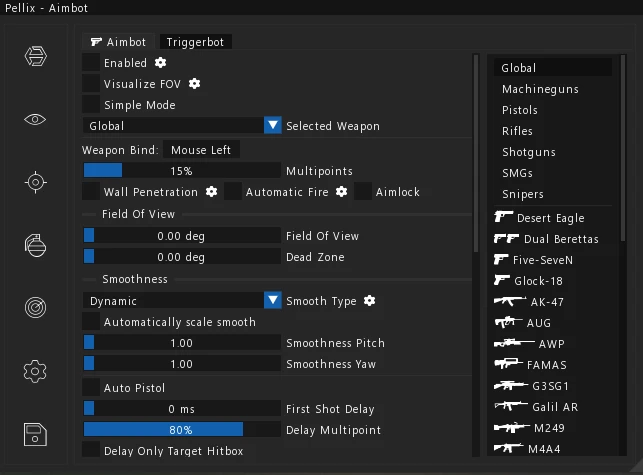
- Aimbot sub-tab
- Enabled: Master switch for the aimbot.
- Wall Check: Only aim at visible targets.
- Smoke Check: Doesn't aim if the target is behind smoke.
- Door Check: Doesn't aim if the target is behind a door. (Built-in now!)
- Flash Check: Disables aimbot if you are flashed.
- Jump Check: Disables aimbot if you are jumping.
- Deathmatch: Enables aimbot to target teammates if deathmatch mode is active.
- Aim Only When Can Shoot
- Lock Target: Locks aimlock target. Resets when aimbot button is released.
- Visualize FOV: Draw the FOV of aimbot on the screen.
- Selected Weapon: Select a weapon to change its settings.
- Global: Common settings between weapons
- Weapon Types: Machineguns, Pistols, Rifles, Shotguns, SMGs, Snipers.
- Legacy HB: Uses legacy hitboxes (bones) rather than centers of hitboxes. (Recommended: OFF)
- Weapon bind: Keybind for aimbot on the selected weapon/weapon group.
- Ignore Triggerbot: Disable aimbot if the triggerbot is shooting.
- Multipoints: Uses multiple points around the hitbox to aim, potentially making it safer. (Recommended: ON)
- Wall Penetration: Allows aiming and shooting through walls.
* Minimum damage: Aimbot will shoot through walls that can be penetrated dealing at least that minimum damage. - Automatic Fire: Automatically shoots when the aimbot is on target. (May cause potential cooldowns or bans)
* Multipoints - Hitchance
- Required Maximum Speed
- Aimlock: Locks onto the target even through walls.
- Smooth Type: Smoothing method for the aimbot.
- Options: Dynamic, Static, None
- Field Of View: The area in degrees within which the aimbot will acquire targets.
- Dead Zone: A small area around the crosshair where smoothing is disabled, preventing jitter.
- Automatically scale smooth: Scales smooth based on you screen aspect ratio to make it consistent across angles. If enabled, smoothness is only one slider.
- Smoothness Pitch/Yaw: Smoothing factors for vertical (pitch) and horizontal (yaw) aiming.
- Auto Pistol: Rapidly clicks when using semi-automatic pistols.
- First Shot Delay: Delays the first shot to appear more human-like.
- Delay Multipoint: Use multipoint to scale the delay.
- Delay Only Target Hitbox: Delay will only check target hitbox.
- Assist Mode: Turn aimbot into aim assist to correct your moves instead of moveing mouse on its own.
- Split Moves: Split moves into multiple ticks.
- Minimum Damage: Minimum damage to deal through walls for the wall penetration feature to activate.
- Auto Stop: Automatically stops the player's movement when aiming.
- Auto Stop Speed: Player speed when auto stop is activated.
- RCS Pitch/Yaw: Percentage of recoil control applied to vertical (pitch) and horizontal (yaw) recoil.
- Kill Delay: Delay after killing a target before aiming at the next.
- Humanize Factor: Adds a small, random jitter to the aimbot's movement.
- Hitboxes: Select which hitboxes to target.
- Simple mode: In aimbot simple mode, there are fewer settings, so it's easier for beginners to configure.
- Triggerbot sub-tab
- Type: How the triggerbot activates.
- Options: Disabled, Crosshair, Hitbox, Mixed
- Jump Check: Disables the triggerbot when jumping.
- Flash Check: Disables the triggerbot when flashed.
- Deathmatch: Enables triggerbot to target teammates if deathmatch mode is active.
- Keybind: The key to activate the triggerbot.
- Delay: Delay before shooting after the trigger is activated. Includes randomization settings.
- Hold: How long to hold the trigger after shooting. Includes randomization settings.
- Block Mouse: Blocks mouse inputs while delay phase is in progress.
- After Shot: Delay after shooting for prevent auto fire.
- Multipoint Scale: How many points the triggerbot uses on the hitbox.
- Seeded triggerbot: Shoots instantly when hit on the server is guaranteed by game's random.
- Restricted type: Shoot when mouse is on the target only.
- Unrestricted type: Shoot even when mouse is not on the target.
- Allow Hitchance: Allow to mix seeded and normal hitchance. Triggerbot will shoot if seeded can shoot or if hitchance is >= x%.
- Hitchance: Hitchance is calculated per hitbox (when % of spread rays can hit the hitbox)
- Reaction Time: Shoots only if player was visible for at least X amount of milliseconds.
- Visibility Check: Only shoot at visible targets.
- Wall Penetration: Allows shooting through walls.
- Minimum Damage: Minimum damage to deal through walls for wall penetration to activate.
- Smoke Check: Won't shoot if the target is behind smoke.
- Hitboxes: Specify hitboxes trigger will hit. All by default.
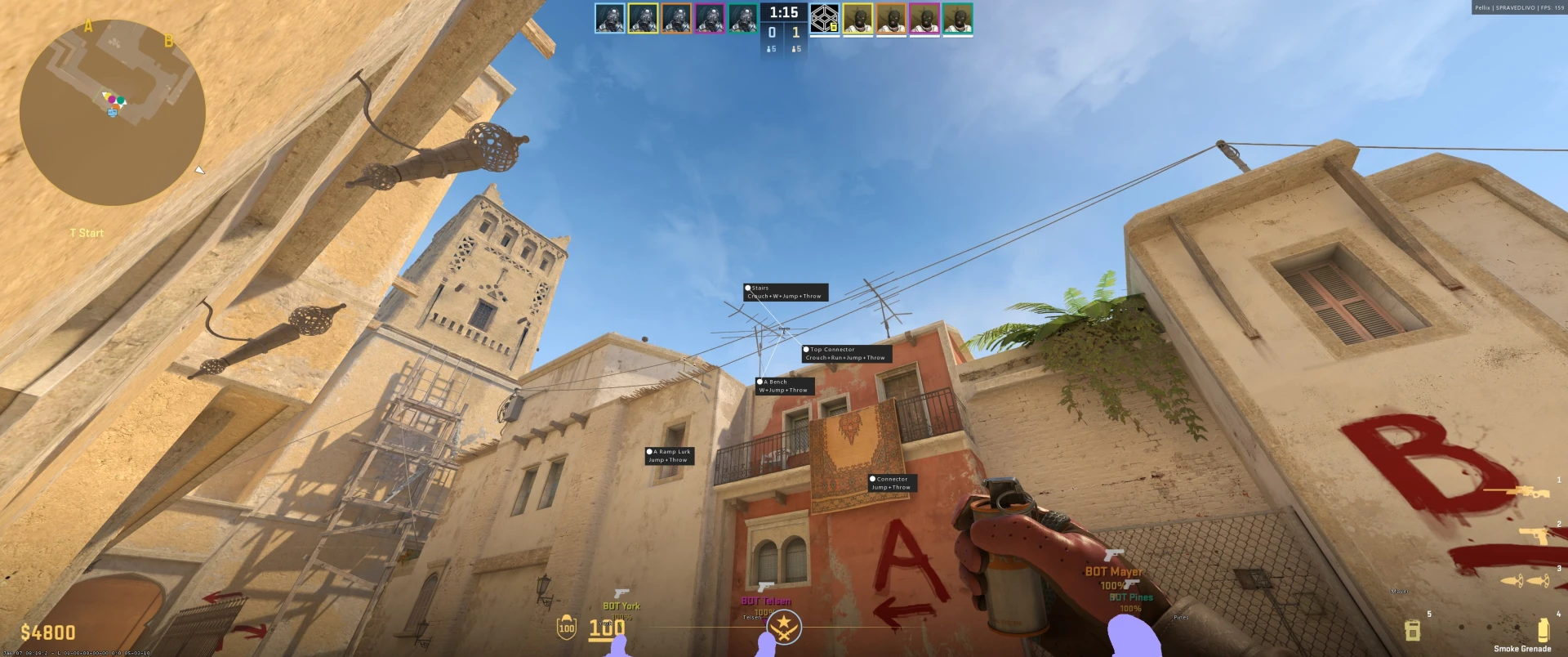
Grenade Helper Tab
- Helper sub-tub
- Enabled: Enable metas visualization.
- Type: Visualize those helper types (metas): Grenade, Wallbang, Movement.
- Automatically aim: Automatically aim on nades on keybind.
- Field Of View: Autoaim FOV.
- Maximum aim step
- Automatic throw
- Max Render Distance: Render metas only in this distance.
- Visible Only: Render only visible metas.
- File location: Premade nade-helper configs should be placed inside
C:\pvyngg\NadeHelper.
Radar Tab
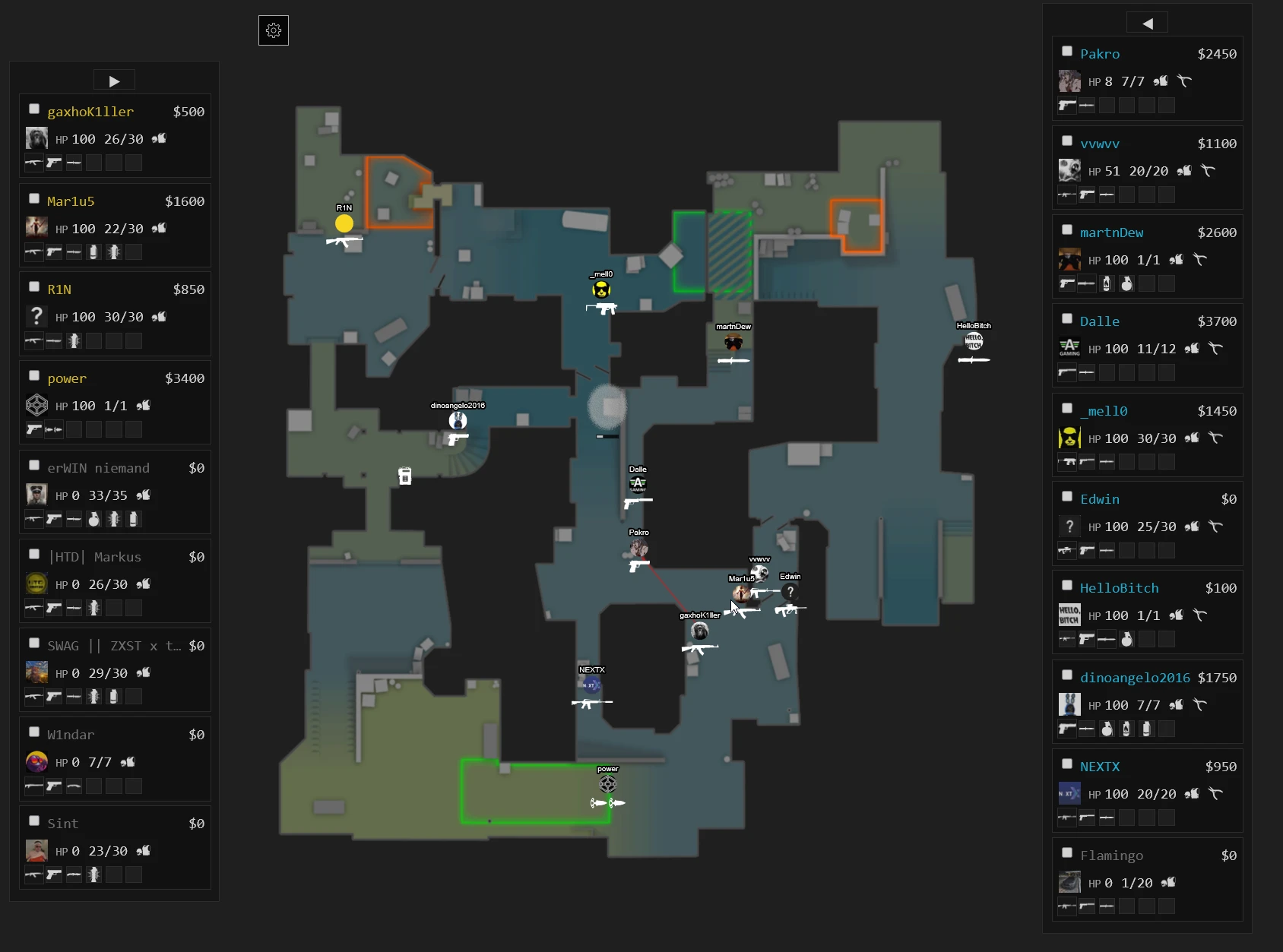
- Cloud Radar Tab
* Server chooser: Choose between multiple servers ran by Pellix. One might work better than another. - Cloud Radar Connection Status: Indicates the status of the connection to a cloud-based radar service.
- Connect/Disconnect Button: Allows connecting to or disconnecting from the cloud radar service.
- Room ID: Displays the unique ID of the radar room.
- Copy Link: Copies the link to the radar room to the clipboard.
- Copy Room Code: Copies the radar room code to the clipboard.
- Update Rate: Speed the data updates
- Options: Very Low, Low, Normal, High, Very High, Realtime. (Higher = faster, uses more of the Internet connection)
- Web page:
- Floating players dock: floating docks for both teams. Docks display avatar, health, ammo, loadout, current weapon. Ability to spectate after certain player.
- Options: Accessible by clicking Settings floating icon. Saved per radar domain. Draw firing traces, Draw smokes & infernos, Avatars on players, Variable zoom, Interpolation, Draw names, Draw health text, Draw health on player, Draw player weapons, Draw player eyesight, Draw player sounds, Hide teammates (only in focus), Draw crouching flag, Draw C4 flag.
- Blank map: Game is either not yet started or map is not supported. We do not provide support for any workshop maps. Sometimes you'll see a blank map even if game recently updated and added a new map. If you're using workshop map that is mimicking a real competitive map, you can specify which one with map override in cheat.
Miscellaneous Tab
- Watermark: Show cheat watermark on the screen
- Options: Disabled, Right Top, Left Top, Right Bottom, Left Bottom
- Spectator List: Shows a list of players spectating you.
- Avatars: Display Steam avatars of spectators.
- Buy List: Shows what your teammates have bought.
- Tab Info: Toggles extra information on the scoreboard.
- Columns: Name, Rank (premiere elo or competitive rank), Faceit (level and elo), K/D ratio, HeadShots%, CS2 Inventory cost, Conviction
- Columns from Leetify: Requires API key. Aim rating, Preaim, TTD (ms), Winrate%.
- Conviction: Consists of two separate metrics. Both are taken from
cswatch.inwebsite. The first is an autoflagger score. The second is complex metric (CSWatch Analysis)
- Bomb Timer: Show bomb timer.
- Bunny Hop: Automatically jumps for you. Bunnyhop feature requires special bind. Both binds are safe to use.
- PBind: Press this button and paste copied content into the CS2's developer console (~). This is de-subticked version of the bind, it grants nearly perfect bhop.
- LBind: Press this button and paste copied content into the CS2's developer console (~).
- Vote Revealer: Reveals enemy team votes.
- Block Bot: Automatically blocks your teammates in the game. (Griefing feature)
- Perfect Defuse: Attempts to automatically defuse the bomb just in time before it explodes.
- Safe: A safety time window so that defuse never fails.
- Radar: Window with radar from game but with enemies always highlighted.
- In-Game: Maps that window into an actual in-game radar, so you can see actual map geometry.
- Hitsound with volume: Plays a sound when you hit an enemy. Hitsound file location:
C:\pvyngg\HitSound.wav. By default uses Windows alert sound. - Keybind List: Show a list of all keybinds you have set.
- Anti AFK: Jumps automatically with delay to prevent AFK kick.
- Auto accept: Automatically accepts matchmaking game. Game should be focused.
- Spread circle: Shows spread of your current weapon as a circle.
Configs Tab
- Local: Save and load configurations from your local machine.
- My Cloud: Your cloud space to save configs, so they are available for download from any PC.
- Public Cloud: Load configurations shared by other players.
DMA Version
DMA version of Pellix contains all the features that normal Pellix has with an exception for the following features:
- Aimbot assist mode
- Keyboard inputs (Bunnyhop, Perfect Defuse, Blockbot, Autostop, AntiAFK)
- Auto accept
The following features are only supported with additional hardware devices: - Aimbot, Triggerbot (MAKCU, KMBOX NET)
- First shot delay (MAKCU)
The following features are supported, but not working properly due to DMA throughput - Discord overlay
Support:
- Join our Discord for questions or assistance: Support Server
To maintain a high level of security and fraud prevention, we do not allow payments made through VPNs or proxy connections. All payment attempts made while using a VPN will be automatically blocked by our system.System Requirements
🖥️ Windows 10/11 x64
👨🏻💻 Intel/AMD [ ALL CPUs/GPUs SUPPORTED ]Always run in a clean environment. Disable overlays (Steam, NVIDIA) for best stability.
Supported Games
- Counter Strike 2
Getting Started
After purchasing, follow these steps:
- Go to the Guide / Download and see the steps for using the product.
Our Socials
All social media accounts are listed in the footer and on Discord and are up to date.
External in the game
Credits for @AuroraFreeqn
Automatic feedback after 7 days.
Automatic feedback after 7 days.
Automatic feedback after 7 days.
Automatic feedback after 7 days.
Pellix External
Log in to Your Customer Account Check your inbox Enter your password Two-Factor Authentication
We'll email you a one-time code, no password needed. Enter the 6-digit code sent to . Enter the password for . Enter the 6-digit code from your authenticator app, or an 8-character recovery code.
Products
![14x Server Boosts [ 3 month ]](https://vyngg.store/storage/images/1126461.webp)
14x Server Boosts [ 3 month ]
2x Server Boosts [ 3 month ]
4x Server Boosts [ 3 month ]
6x Server Boosts [ 3 month ]
20x Server Boosts [ 3 month ]

























No matches here. Press Enter to search everything.